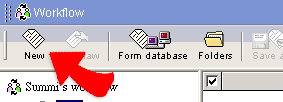
Issue a new workflow
1. Issue a new workflow by clicking "Issue" and follow
the following steps to complete the issue process and start the workflow.
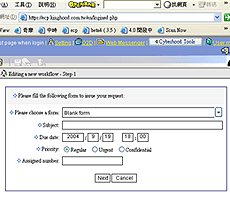
2. Step 1:
1) Choose a form and fill the subject.
2) Set the due-date: the system default value is 3 days.
3) Set the priority: Regular, Urgent, or Confidential.
4) Fill the workflow number: the field is optional.
5) Click "Next"
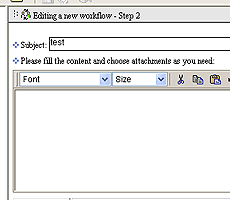
3. Step 2:
1) In the content area, fill data or edit as you need.
2) Attach files.
3) Link completed workflows.
4) Click "Next"
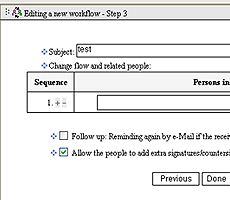
4. Step 3:
1) Decide the delivery order by choosing corresponding persons.
2) Click "+" to add or insert a person.
3) Click "-" to remove a person.
4) Choose the attribute for the associated person.
5) Push: system will follow the setting to send the reminding mail
to the associated person depends upon the rule.
6) Check if the workflow allows to add more persons during the workflow
process.
7) Click "Done"
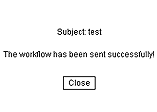
5. Step 4:
Confirm the workflow has been sent out. click "Close".
User can check out the proceeding status of a particular workflow in the
"Ongoing workflow" folder.